Automate Trades From Crypto Trading Signals
Connect supported signal providers to Altrady Signal Bot and turn incoming crypto trading signals into automated entries, position management and exits across your connected exchanges.
- Supported Signal Providers
- Spot & Futures
- Position Management
- Performance Analytics

From Trading Signal to Managed Position
A signal identifies the opportunity. Your Signal Bot settings determine how that signal is traded and managed. Signals tell the bot when an opportunity appears. Your configuration determines how the position is opened, managed and closed.
- Signal Provider
- Signal Bot
- Your Bot Rules
- Connected Exchange
-
Step 1
A Supported Provider Sends a Signal
A signal provider such as Crypto Base Scanner or The Better Traders identifies an opportunity and sends it to your bot.
-
Step 2
Your Filters Check the Signal
Market filters, position limits and cool-downs decide whether the bot acts on the signal.
-
Step 3
Your Rules Open the Position
The bot places the entry and any DCA orders according to your Entry settings.
-
Step 4
Your Settings Manage the Exit
Take profit and stop loss settings manage the position on your connected exchange.
Choose Your Signal Provider
Start by choosing where your signals come from. Signal Bot works with the signal providers supported in Altrady.
Crypto Base Scanner
Use Altrady's Crypto Base Scanner signals as the trigger for your Signal Bot.
The Better Traders
Use supported signals from The Better Traders through the Altrady integration.
The supported providers are listed when you create a Signal Bot.
Automate Crypto Base Scanner Signals
Crypto Base Scanner scans markets according to its strategy conditions and can send qualifying signals to your Signal Bot.
- Crypto Base Scanner
- Qualifying Signal
- Signal Bot Rules
- Trade
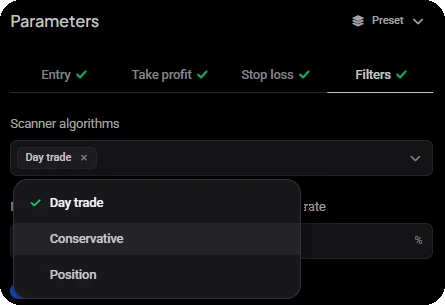
Choose which scanner algorithms the bot listens to, such as Day trade, Conservative or Position, and use the success-rate filters to decide which signals it acts on.
Decide How Each Signal Is Traded
- Investment
- Entry
- DCA
- Take Profit
- Stop Loss
- Filters
Control How Positions Are Built
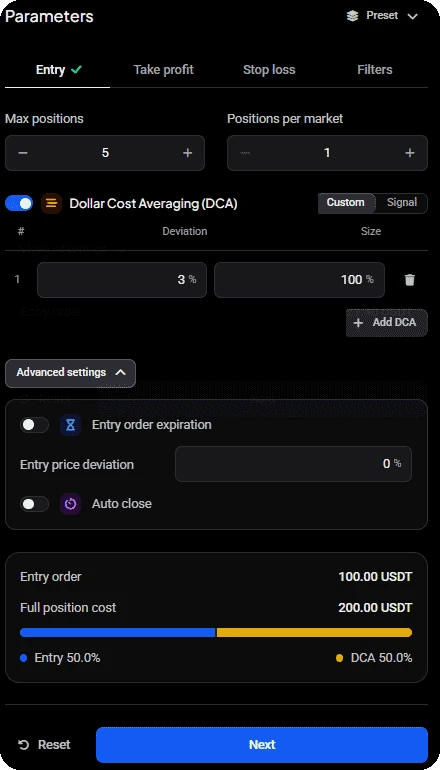
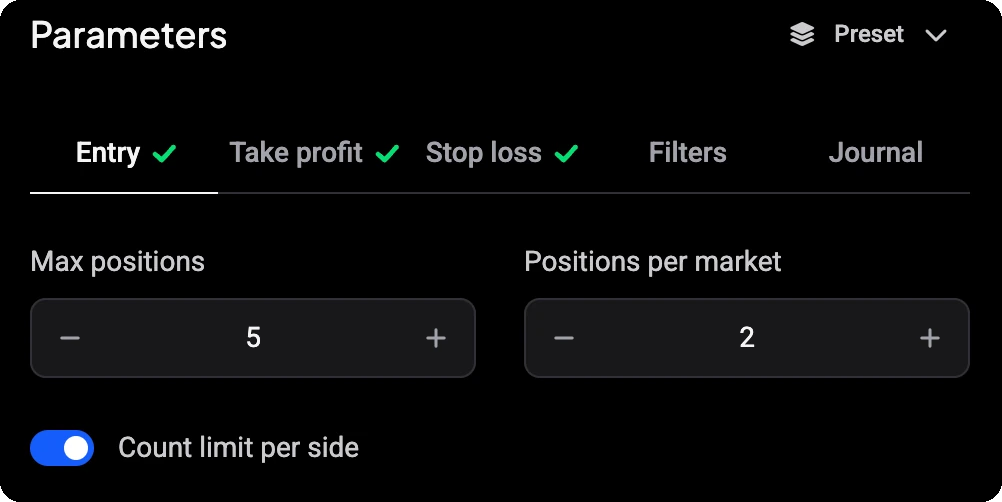
Signal Bot controls how many positions it opens and how each position is built after a signal.
-
Max positions. Set how many positions the bot may hold open at once.
-
Positions per market. Limit how many of those positions can be open in the same market.
-
DCA. Add DCA orders below the first entry, set by deviation and size, or let the signal provide them.
-
Advanced settings. Use entry order expiration, entry price deviation and auto close where your setup needs them.
The Full position cost shows what a position commits once every DCA order has filled.
Manage the Position After the Signal Arrives
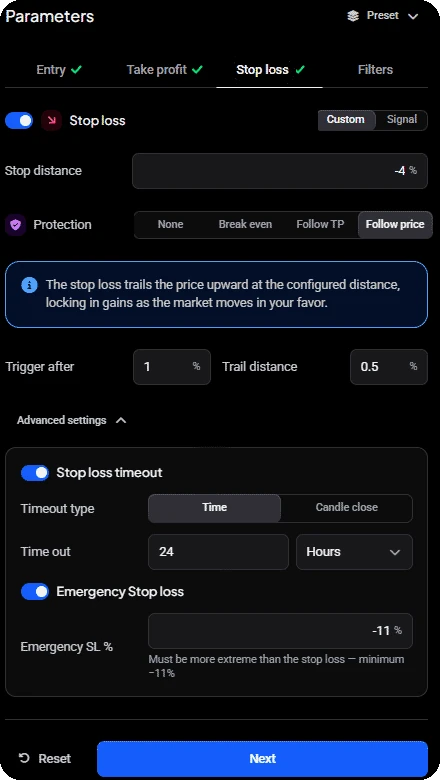
Take profit and stop loss settings decide how each position is closed, according to the options you configure.
- Signal
- Entry
- DCA
- Take Profit / Stop Loss
-
Take profit. Set one or more targets, with the option to trail the last target.
-
Stop loss. Set a stop distance and choose a protection mode: None, Break even, Follow TP or Follow price.
-
Advanced stop loss. Add a stop loss timeout and an emergency stop loss where your setup needs them.
Control Which Markets Your Signals Can Trade
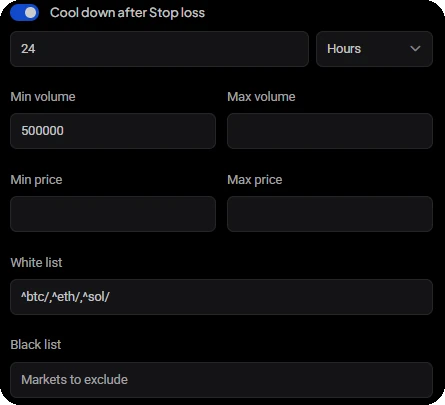
Filters decide which signals and markets the bot is allowed to act on.
-
White list. Limit the bot to markets you explicitly allow.
-
Black list. Exclude markets you do not want the bot to trade.
-
Volume and price. Ignore markets outside the volume and price ranges you set.
-
Cool-downs. Pause new signals for a set time after the bot opens a position or after a stop loss.
A signal can be accepted, filtered or rejected according to your bot configuration and trading conditions.
Automate Signals on Spot and Futures
Run Signal Bot on supported spot or futures markets and configure the position settings appropriate to the connected account.
On a futures account the bot adds settings such as margin type, leverage and how the per-market limit applies to longs and shorts. Availability and settings depend on the exchange and market.
Test Your Signal Bot Before Trading Live
Use Altrady Paper Trading to test how your Signal Bot configuration responds to incoming signals with simulated funds before using the setup on a live account.

When you are ready, Convert to Live copies the bot's settings into a live bot. Paper trading is simulated, so live results can differ.
See How Your Signal Strategy Is Performing

-
Headline metrics
Win rate, realized and unrealized PnL, open positions and how much of the bot's allocation is in use.
-
Sessions
A new session starts when you change the bot's filters, so you can compare one configuration with another.
-
Breakdowns and charts
Results by market, volume and DCA depth, plus PnL and closed positions over time.
Analytics describe the trades already made. Past results do not predict future results.
Signal Bot or TradingView Bot?
Both automate trading signals, but the signal comes from a different place.
Signal Bot
- Best for
- Trading signals from supported signal providers
- Trigger source
- Supported signal providers such as Crypto Base Scanner and The Better Traders
- Strategy logic
- Provided by the signal source, with execution and position rules configured in Signal Bot
TradingView Bot
- Best for
- Automating your own TradingView strategy
- Trigger source
- TradingView strategy alerts
- Strategy logic
- Lives in your TradingView strategy and Pine Script workflow
Signal Bot or Webhook Bot?
Choose by who generates the trading signal.
Signal Bot
- Best for
- Supported trading-signal providers
- Setup
- Choose a supported signal provider and configure how Signal Bot should manage the resulting trades.
Webhook Bot
- Best for
- Your own algorithm, application or external HTTP-capable trading system
- Setup
- Your external system sends supported webhook instructions to Altrady.
Signal Automation Inside Your Trading Workspace
Signal Bot runs in the same Altrady workspace you use to monitor positions, manage trades and review performance.
- Receive
- Filter
- Execute
- Manage
- Review
One Workspace. Every Trade.
Automate Signals Across Your Connected Exchanges
Use Signal Bot with supported markets on your connected exchange accounts while your funds remain on your exchanges.
Altrady connects to supported third-party exchanges through API keys and does not require withdrawal permissions.
-
19+ Exchanges
-
Spot & Futures
-
Funds Remain on Your Exchanges
-
No Withdrawal Permissions
-
 Binance
-
 Bybit
Bybit
-
 OKX
OKX
-
 Coinbase
-
 Kraken
-
 KuCoin
-
 MEXC
MEXC
-
 Hyperliquid
Explore More Ways to Automate
Frequently asked questions
-
Altrady Signal Bot turns trading signals from supported signal providers into automated trades according to the bot settings you configure.
-
Signal Bot works with the signal providers supported in Altrady, including Crypto Base Scanner and The Better Traders. The available providers are listed when you create a Signal Bot.
-
A supported provider sends a trading signal to the bot. Signal Bot then applies your configured rules for entries, position management, filters and exits before executing supported actions through your connected exchange.
-
No. Whether a signal results in a trade depends on the bot's configuration and trading conditions, including filters, position limits and whether an order can be placed on the connected exchange.
-
Yes. Signal Bot can add DCA orders below the first entry to build a position after a signal, using the deviation and size you set or the values provided by the signal.
-
Yes. Signal Bot supports configured take-profit targets, including trailing on the last target, and stop-loss settings with protection modes and optional advanced controls.
-
Yes. Signal Bot supports market filters including whitelist and blacklist controls, so you can limit or exclude markets.
-
Yes. Signal Bot can run on supported futures accounts as well as spot accounts. Futures settings and availability depend on the connected exchange and market.
-
Yes. You can use Altrady Paper Trading to test a Signal Bot configuration with simulated funds before using it on a live account.
-
Signal Bot is designed for supported trading-signal providers. TradingView Bot automates strategies through TradingView strategy alerts. Webhook Bot accepts supported trading instructions from your own external HTTP-capable system.
Turn Trading Signals Into Automated Trades
Choose a supported signal provider, configure how your bot should manage each opportunity, and let Altrady handle the execution.