Automate Crypto Grid Trading
Set a price range, divide it into grid levels and let the bot place buy and sell orders as price moves through the range. Test the setup against historical prices, then run it on your connected spot exchange.
- Spot Markets
- 2–100 Grids
- Historical Backtesting
- Paper Trading

Turn a Price Range Into an Automated Grid
A grid bot trades inside the range you set. The range is split into grid levels, and the bot keeps working buy and sell orders across those levels. It manages one position for the pair while it cycles those orders.
- Choose Range
- Create Grid Levels
- Place Buy & Sell Orders
- Repeat as Price Moves
-
Step 1
Set the Range
Choose the lower and upper price the grid trades between.
-
Step 2
Split It Into Grid Levels
Choose how many levels divide the range, from 2 to 100.
-
Step 3
Buys Below, Sells Above
The bot places buy orders below the current price and sell orders above it.
-
Step 4
Orders Keep Cycling
As orders fill, the bot places the next orders across the grid inside the range.
Set the Range Your Grid Will Trade
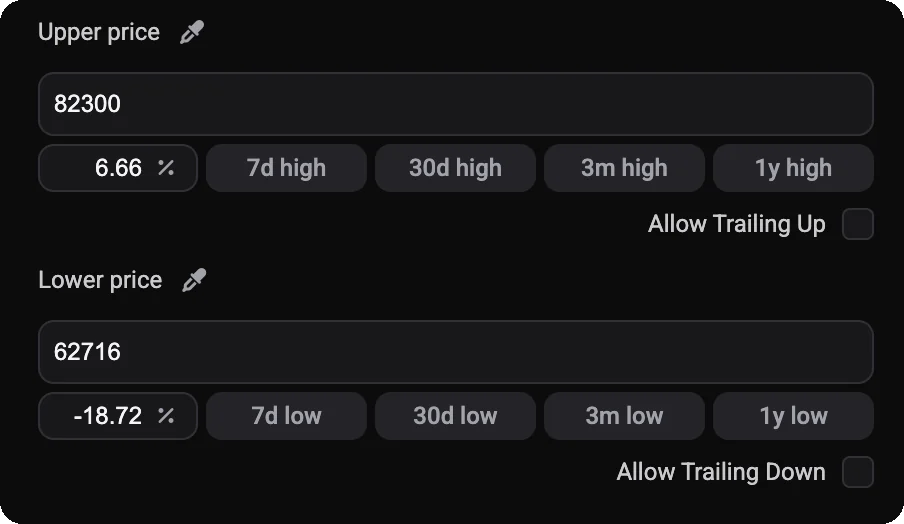
The lower and upper price define where the grid operates.
-
Upper price. The top of the range.
-
Lower price. The bottom of the range.
-
Recent highs and lows. Set a boundary from the 7-day, 30-day, 3-month or 1-year high or low, or pick a price from the chart.
If price moves outside the range, the grid has no levels to trade at the current price and waits for price to come back, unless trailing is switched on.
Choose How Your Grid Is Spaced
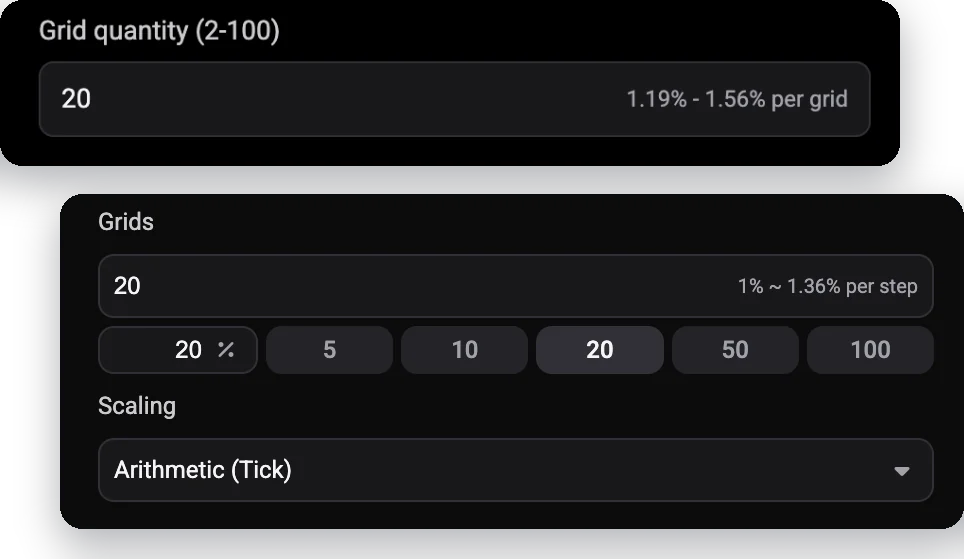
Decide how many levels divide the range and how they are spaced.
-
Arithmetic
Grid levels are an equal price difference apart.
-
Geometric
Grid levels are an equal percentage difference apart.
Each order needs to stay above the exchange's minimum order size.
-
Grid quantity. From 2 to 100 levels. More levels mean smaller, more frequent orders.
-
Profit per grid step. Shown as you change the grid count, so you can see the spacing between levels.
See How Your Investment Is Used
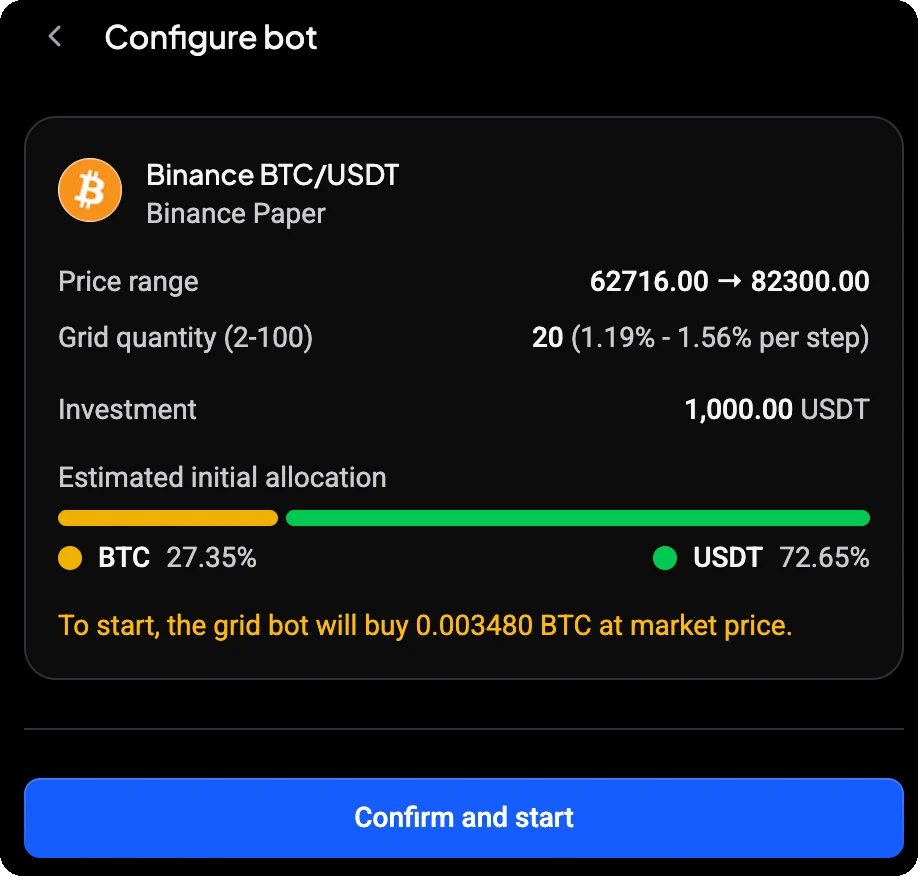
Set the investment and choose which currencies fund the grid. The summary shows how the investment is split before the bot starts.
-
Investment. The total amount the bot may use.
-
Fund with. The quote currency alone, such as USDT, or both currencies, such as USDT + BTC, if you already hold the base currency.
-
Opening buy. Funded with the quote currency, the bot first buys the base currency its sell orders need at market price.
The grid runs as one position for the pair: buys add to it and sells reduce it.
Shift Your Grid With Trailing
Configure the grid to shift its range when price moves beyond it. Trailing up and trailing down are separate settings in Advanced settings, and both are off by default.
Trailing up
- When it moves
- Price moves above the upper price
- What the bot does
- Shifts the grid range up
- Keep in mind
- Buying higher needs more free quote currency than the original investment
Trailing down
- When it moves
- Price moves below the lower price
- What the bot does
- Shifts the grid range down
- Keep in mind
- Lower-priced orders still have to meet the exchange's minimum order size
If the bot can't place the new orders, for example because free quote currency runs short, it tells you what it needs.
Define What Happens Outside the Grid
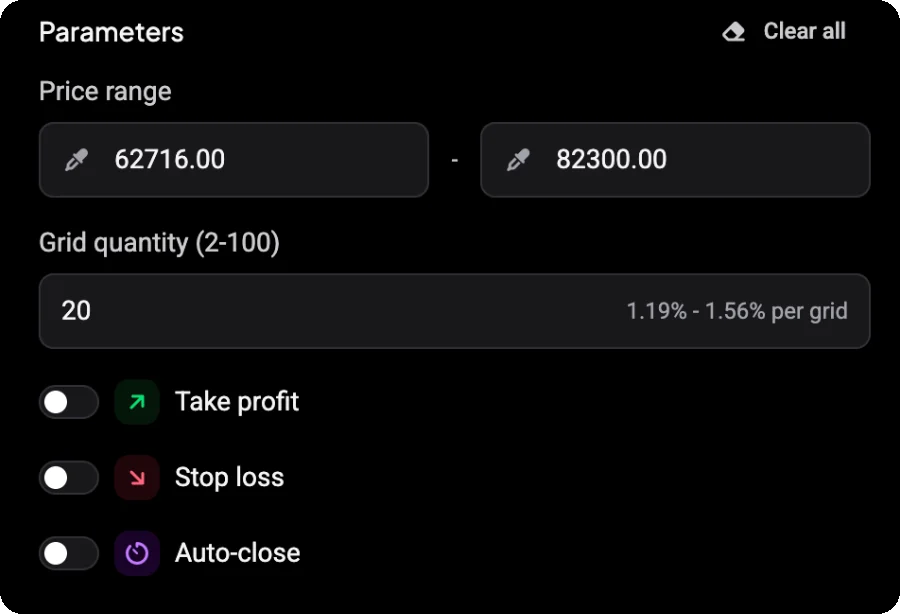
Take profit, stop loss and auto-close are rules for closing the whole grid. Each is off until you switch it on.
-
Take profit. Close the grid when price rises to a take-profit price above the range.
-
Stop loss. Close the grid when price falls to a stop-loss price below the range.
-
Auto-close. Close the grid after a set number of hours or days.
-
Behavior on exit. For each rule, convert the holdings to the quote currency, convert them to the base currency, or cancel all orders.
A stop loss is a rule the bot follows. It does not guarantee the price at which the grid is closed.
Backtest Your Grid Before You Run It
Run your price range, grid count and investment against historical prices before the bot goes live.
Backtest results are historical simulations and do not predict future performance.
-
Net PnL. The overall result over the test period, in the quote currency and as a percentage.
-
Grid profit. What the completed grid trades earned.
-
Initial position profit. The gain or loss on the base currency bought at the start.
-
Floating P&L, fills and fees. Open orders, buy and sell fills, and fees paid, with an equity curve.

Explore More Setups in the Grid Backtester
The grid bot backtest page gives you more room to compare ranges, grid counts and time periods.

Set the range from recent highs and lows, choose a grid preset and scaling, and test up to 60 days on 15-minute to daily candles. Every simulated buy and sell is marked on the chart, and Create grid bot opens the setup with the tested market, range and grid count filled in. Grid profit and floating P&L are reported separately, so you can see completed grid trades apart from the value of what the bot still holds.
Start From a Suggested Grid
-
Grid picks by risk
Choose Low, Medium or High risk and pick from suggested markets with their range and grid count.
-
Choose manually
Pick your own market and let the setup propose a range and grid count from recent price history.
-
Backtested setups
Start from a configuration in the daily backtest results and adjust it before you run it.
Suggestions are starting points based on past prices. You review and confirm every setting before the bot starts.
Explore Grid Setups From Daily Backtests
Browse setups identified by Altrady's daily backtest scan, review their historical results, then use one as the starting point for your own Grid Bot.
- Filter and sort
- Preview
- Open in backtests
- Use this template

Filter by market, exchange, profit, drawdown, cycles and volume; results are sorted by backtest PnL by default. Open in backtests to adjust and rerun a configuration, or Use this template to fill in your own bot setup, then review and start it. The figures are historical backtest results. They do not predict future performance, and you decide every setting before a bot starts.
Test Your Grid Bot With Simulated Funds
Test the setup with simulated funds before deciding whether to run it live.
-
Run it on a demo account. Demo accounts run in paper mode, so no real funds are used.
-
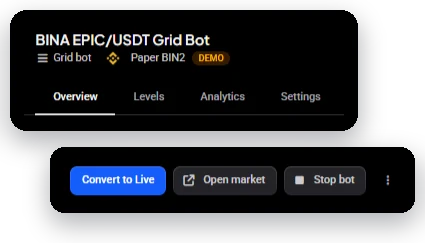
Convert to Live. Create a live version of the demo bot on a live account for the same market. The demo bot is stopped first.
Paper Trading is simulated. Live fills and results can differ.
Monitor Your Grid While It Runs
Each grid bot has its own page with a chart of its range, its stats, its closed grid levels, analytics and settings.
-
Net PnL and invested. The bot's overall result and what it has invested.
-
Grid profit and floating P&L. Completed grid trades, and the open result of what the bot holds.
-
Fees, cycles and runtime. Fees paid, cycles today and in total, and how long the bot has run.
-
Levels and Analytics. Closed grid levels with their profit, plus cumulative and daily PnL charts and a sessions breakdown.
Grid profit can be positive while floating P&L is negative: completed grid trades and the position the bot still holds are reported separately.

Grid Bot or DCA Bot?
Both automate entries and exits, but they work in different ways.
Grid Bot
- Best for
- Trading a configured price range
- Core behavior
- Places buy and sell orders across grid levels inside the range
- Markets
- Spot
DCA Bot
- Best for
- Building and managing a position from an initial entry and safety-order ladder
- Core behavior
- Starts from Immediate, Indicator or Price Move conditions, then manages the position according to the strategy
- Markets
- Spot and futures
Grid Bot or Signal Bot?
What drives the trades is different.
Grid Bot
- What drives trades
- Price moving through your configured grid levels
- Core purpose
- Trade a price range with buy and sell orders across grid levels
Signal Bot
- What drives trades
- Trading signals from supported signal providers
- Core purpose
- Apply configured trading rules to provider-generated opportunities
Grid Trading Inside Your Altrady Workspace
Grid Bot runs in the same Altrady workspace you use to monitor positions, manage trades and review performance.
- Set Range
- Place Orders
- Trade the Grid
- Monitor
- Review
One Workspace. Every Trade.
Run Grid Bots Across Your Connected Spot Exchanges
Use Grid Bot on the spot markets of your connected exchange accounts.
Your funds remain on your exchange accounts, and Altrady does not need withdrawal permissions. Availability depends on the exchange and market.
-
Spot Markets
-
Live and Paper Accounts
-
Funds Remain on Your Exchanges
-
No Withdrawal Permissions
-
 Binance
-
 Bybit
Bybit
-
 OKX
OKX
-
 Coinbase
-
 Kraken
-
 KuCoin
-
 MEXC
MEXC
Explore More Ways to Automate
Frequently Asked Questions
-
Altrady Grid Bot is a spot trading bot that trades inside a price range you set. It divides the range into grid levels and places buy orders below the current price and sell orders above it, managing one position for the pair.
-
You set a lower and upper price and a number of grid levels. The bot places buy orders below the current price and sell orders above it, and as orders fill it keeps placing orders across the grid while price stays inside the range.
-
You can use from 2 to 100 grid levels. Each order has to stay above the exchange's minimum order size, so the investment needs to cover the number of levels you choose.
-
Without trailing, the grid has no levels to trade at the current price and waits for price to return to the range. With trailing up or trailing down switched on, the bot can shift the range to follow price, as long as it can place the new orders.
-
Yes. Trailing up shifts the grid range up when price moves above the upper price, and trailing down shifts it down when price moves below the lower price. Both are off by default.
-
Yes. You can set a take-profit price above the range, a stop-loss price below it and an auto-close time, and choose for each whether the bot converts its holdings to the quote currency, converts them to the base currency or cancels all orders.
-
Yes. You can run your range, grid count and investment against historical prices before starting the bot, or use the grid bot backtest page to compare setups. Backtest results are historical simulations and do not predict future performance.
-
Yes. You can run a Grid Bot on a demo account with simulated funds and convert it to a live bot when you're ready. Live fills and results can differ.
-
No. Grid Bot runs on spot markets only, on live, paper and backtest accounts. If you open the grid bot setup on a futures market, Altrady offers to switch to the matching spot market.
-
Grid Bot trades a configured price range on spot markets by placing buy and sell orders across grid levels. DCA Bot builds and manages a position from an initial entry and safety-order ladder, starting immediately, from indicator conditions or after a price move.
Build Your Grid Strategy and Put It to Work
Set your range, configure the grid, test the setup and run it on your connected spot exchange.