Automate Crypto Entries With a DCA Bot
Choose when your bot enters — immediately, from indicator conditions or after a configured price move — then use a safety-order ladder to build and manage the position.
- 3 Start Modes
- Safety-Order Ladder
- Spot & Futures
- Historical Backtesting

From Entry Condition to Managed Position
Choose when the bot should enter, then define how the position should be built and managed. The start condition determines when the position opens. Your DCA settings determine how additional entries are placed, while take-profit and stop-loss rules manage the exit.
- Start Condition
- Initial Entry
- Safety Orders
- Take Profit / Stop Loss
-
Step 1
Choose the Start Condition
Start immediately, on your indicator conditions or after a configured price move.
-
Step 2
The Bot Places the Initial Entry
The first order opens the position on your selected market.
-
Step 3
Safety Orders Build the Position
Additional entries are placed at your configured price steps and sizes.
-
Step 4
Your Rules Manage the Exit
Take-profit targets and your stop loss decide how the position is closed.
Choose How Your DCA Bot Starts
-
Immediate
Start the position on your selected market(s) without waiting for an indicator or price-move trigger.
-
Indicator
Wait for your configured indicator conditions to become true at candle close — on the markets you pick, or across every market on a quote currency.
-
Price Move
Trigger an entry after price moves by the percentage you set — a drop for longs, or a rise for futures shorts.
You pick the start mode when you create the bot. Market selection, investment and position settings follow.
Start When Your Indicator Conditions Are Met
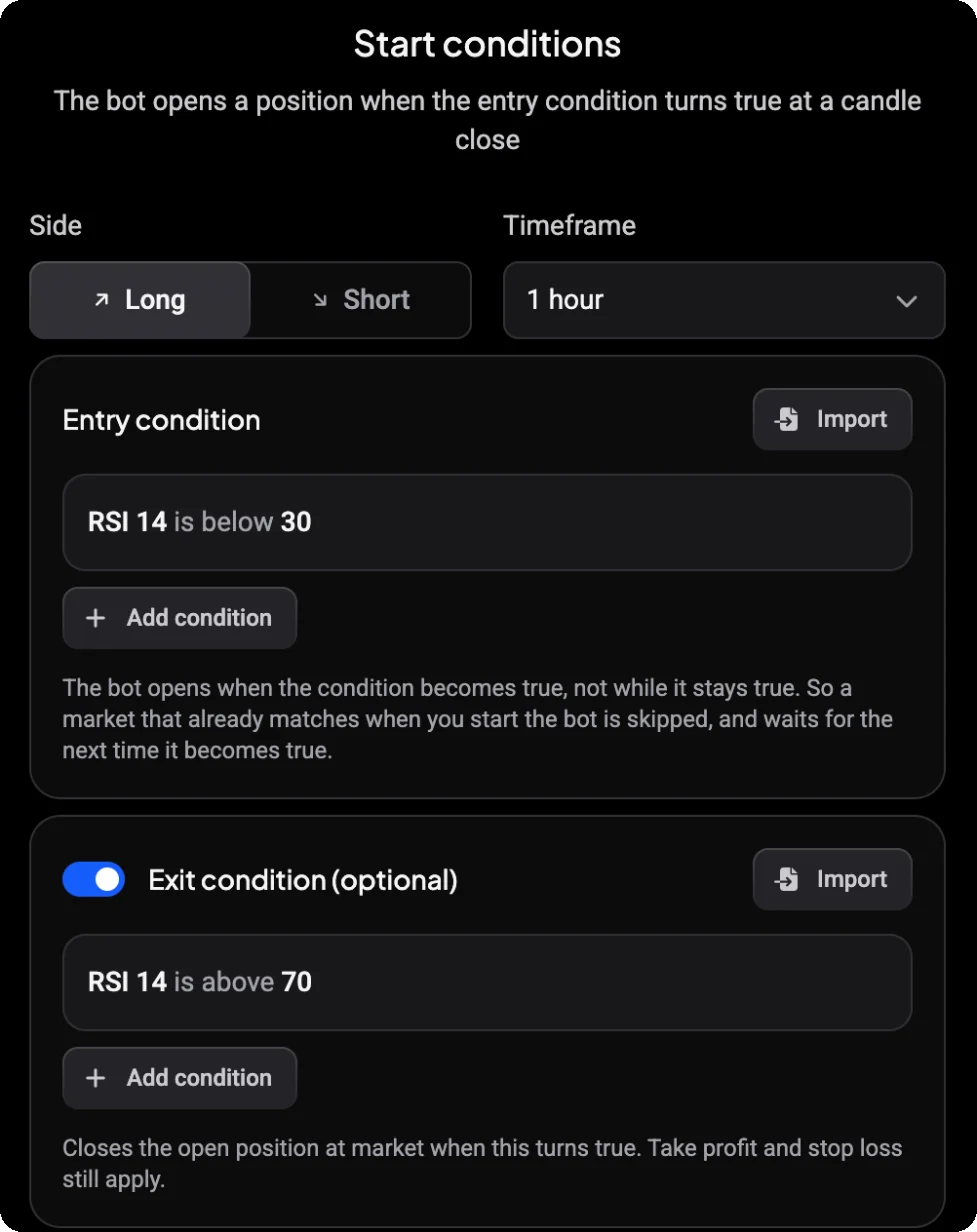
The bot opens a position when your entry condition turns true at a candle close.
-
Side. Long or short.
-
Timeframe. The candle size the conditions are checked on.
-
Entry condition. One condition, or several combined.
-
Exit condition (optional). Close the position at market when it turns true. Take profit and stop loss still apply.
Already built a rule in the TA Scanner? Import it from your rules, or start from a template.
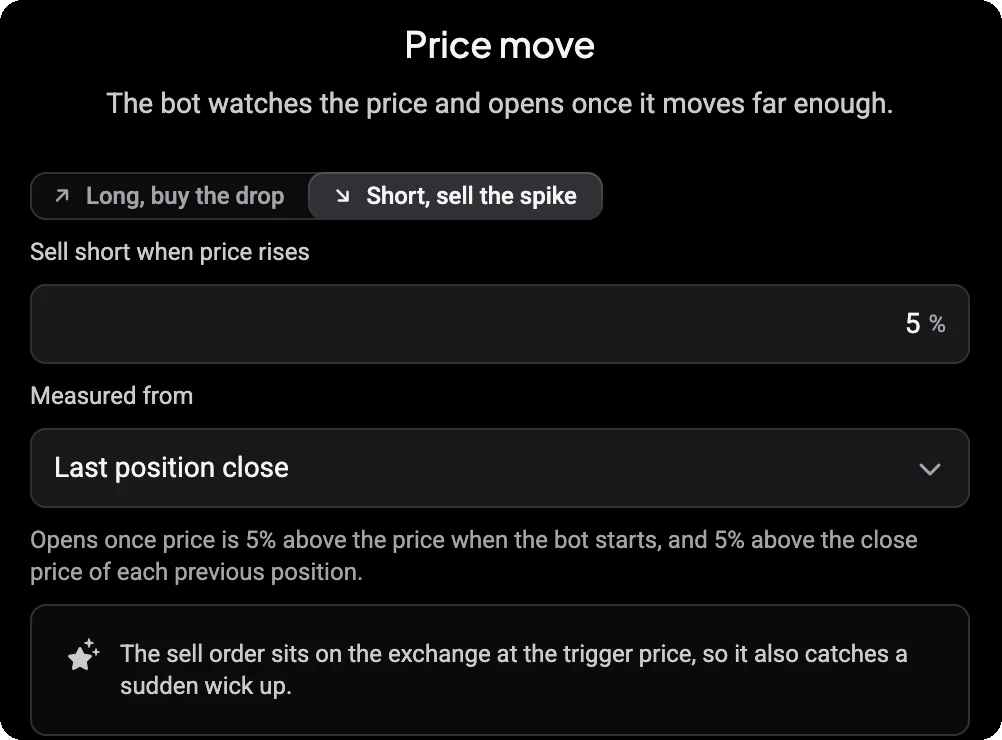
Start After a Configured Price Move
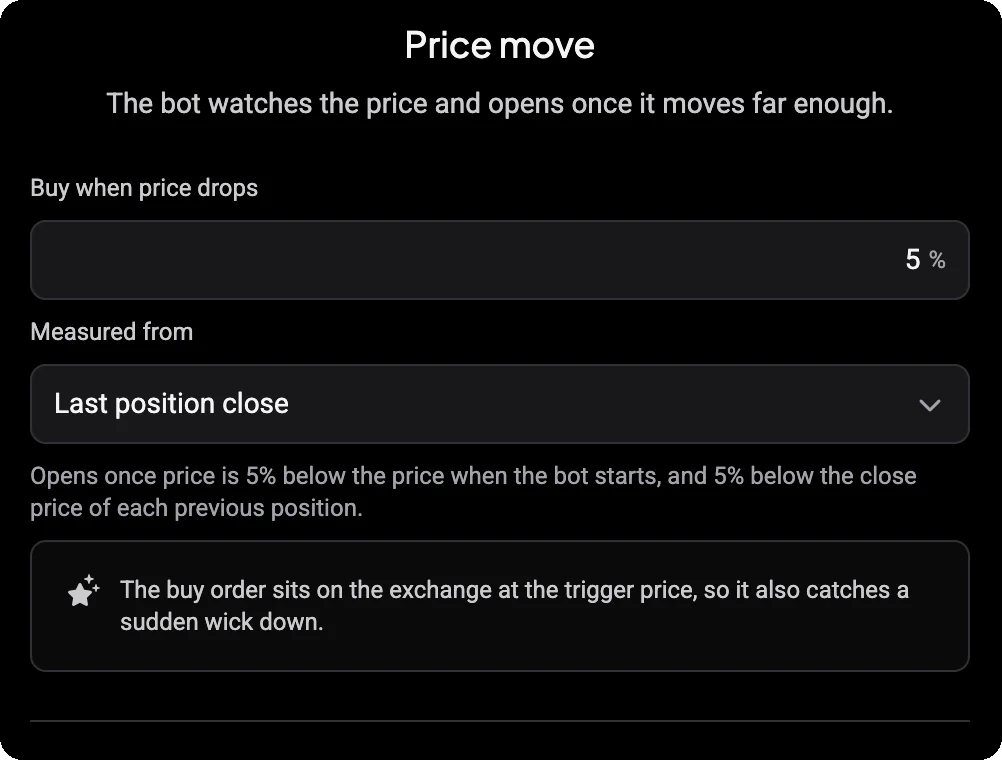
Set how far price has to move before the bot enters.
-
Buy when price drops. The percentage the price has to fall.
-
Measured from. The price at the last position close, or the open of the current candle for an interval such as 4 hours.
On a futures account you can also sell short when price rises by the percentage you set.
Build the Position With Safety Orders
After the initial entry, DCA Bot can place additional configured entries as price moves, building the position according to your strategy.
- Initial Entry
- Safety Order 1
- Safety Order 2
- Safety Order 3
-
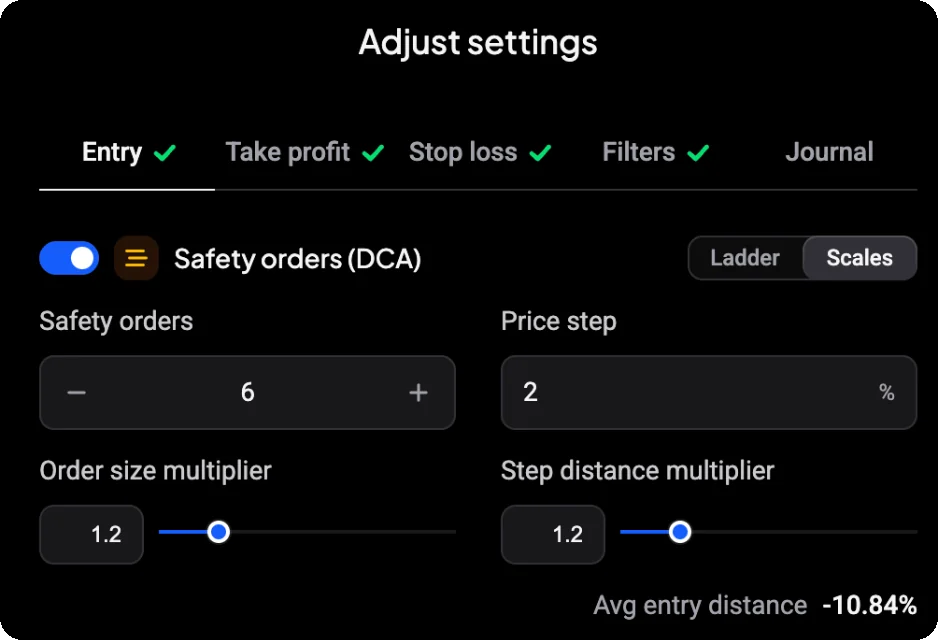
Safety orders. How many additional entries the bot can place.
-
Price step. How far price moves before the next safety order.
-
Order size multiplier. How each safety order's size changes from the one before.
-
Step distance multiplier. How the distance between safety orders changes down the ladder.
Each safety order that fills changes the position's average entry price. The average entry distance shows where it would sit once the ladder is filled.
Control How the Position Is Built
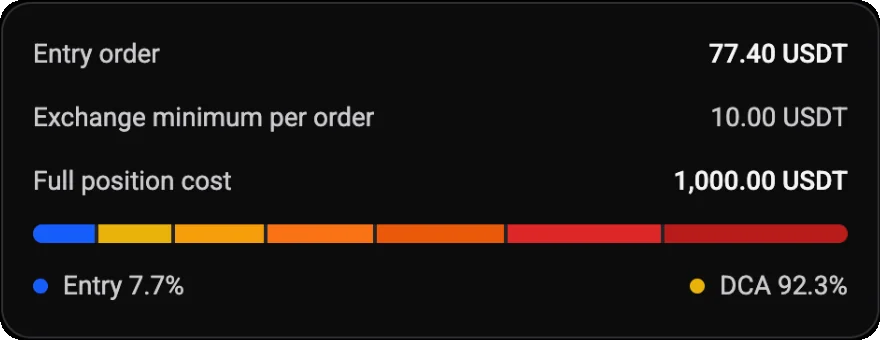
Your investment is divided between the initial entry and the safety orders, so you can see what a position commits before the bot starts.
Start from a Conservative, Balanced or Aggressive variant, then adjust the settings to fit your strategy.
-
Entry order. What the first order of each position costs.
-
Full position cost. What the position costs once every safety order has filled.
-
Entry and DCA split. How the full position divides between the initial entry and the safety orders.
Reinvest profits
Choose whether realized profit is added back into the bot's allocated funds, so future positions can use a larger base.
Plan the Exit Before the Position Opens
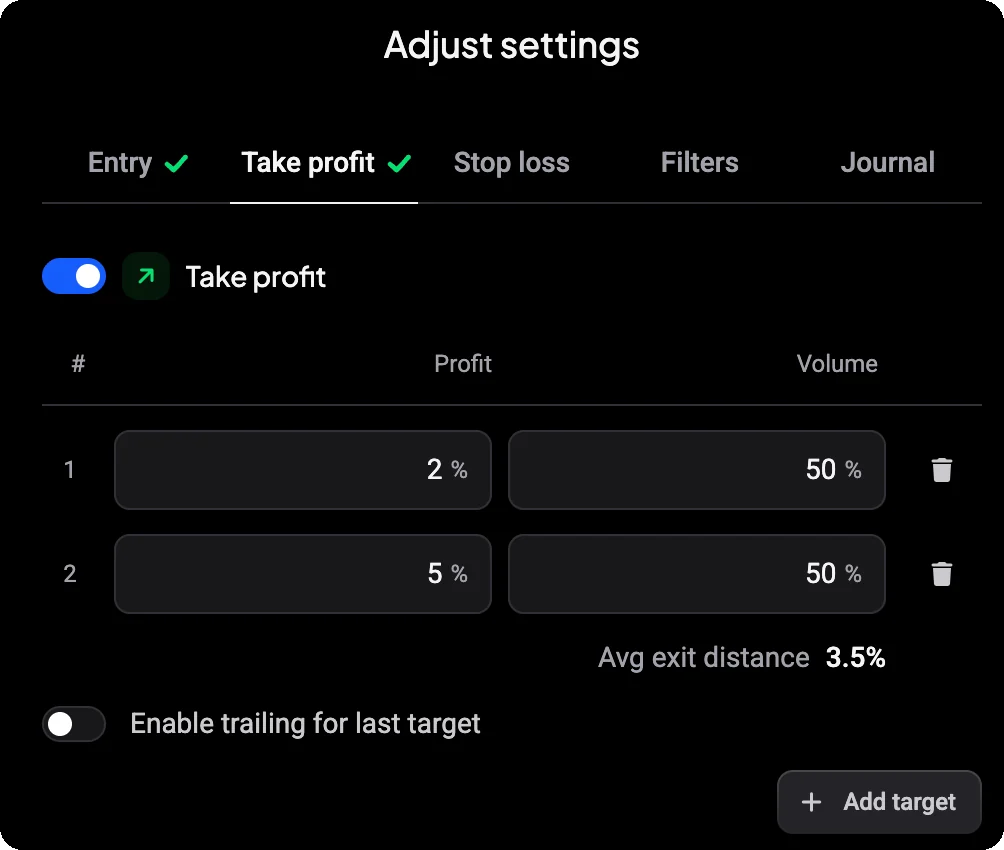
Set take-profit targets as part of the strategy, so every position knows how it should be closed.
- Entry
- Safety Orders
- Take Profit
-
Targets. One target, or several partial targets.
-
Profit. Measured from the position's average entry price.
-
Volume. How much of the position each target closes.
-
Trailing. Let the last target follow price instead of closing at a fixed level.
Indicator bots can also close at market on an optional exit condition.
Define Your Downside Rules
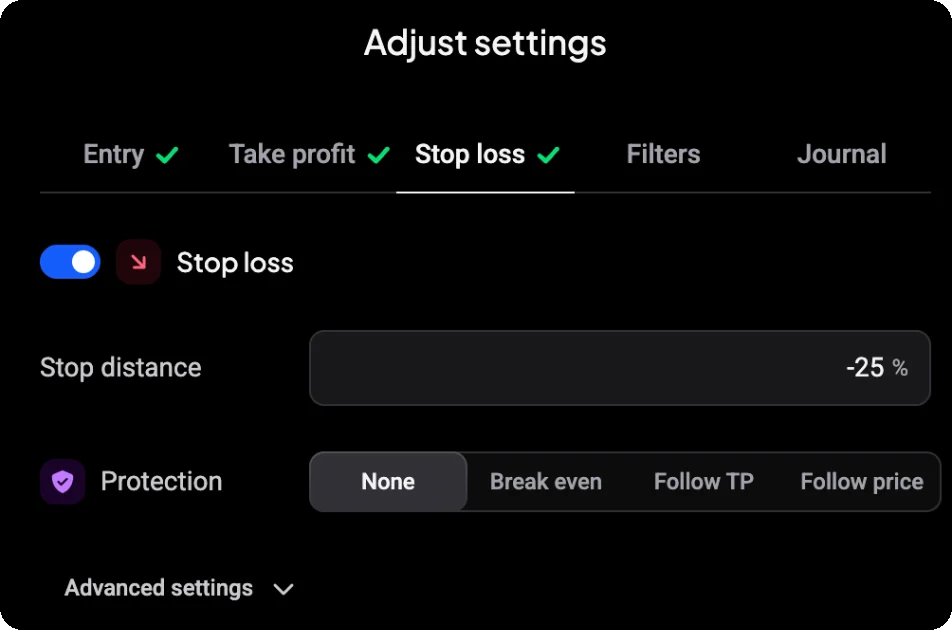
Configure when the position should be stopped and, where configured, how the stop adjusts as the trade develops.
-
Stop distance. How far price can move against the position before the stop triggers.
-
Protection. None, Break even, Follow TP or Follow price.
-
Advanced settings. A stop loss timeout, and an emergency stop loss that closes the position straight away.
A stop loss is a rule the bot follows. It does not guarantee the price at which a position is closed.
Run DCA Strategies on Spot and Futures
Use DCA Bot on spot markets, or on futures markets where it can run long and short strategies.
Short strategies are available on futures accounts only. Availability depends on the connected exchange and market.
- Spot
- Futures
- Long
- Short (futures)
Backtest Your DCA Strategy Before You Run It
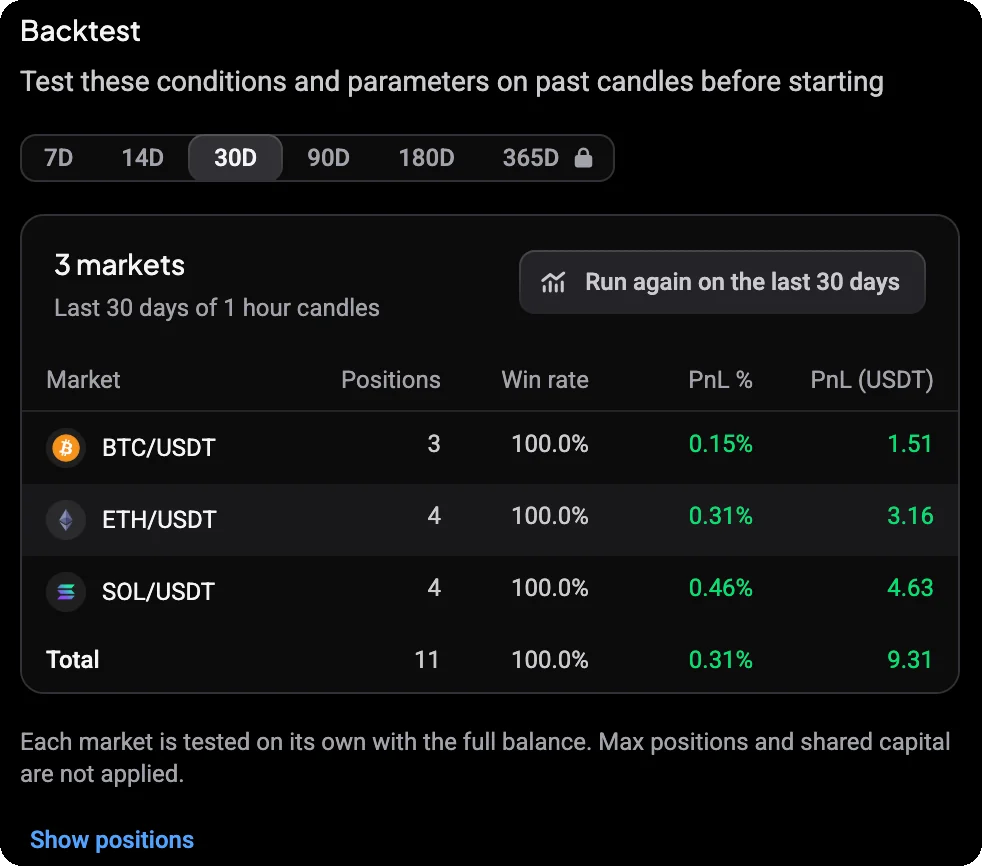
Test supported Indicator and Price Move DCA configurations against historical candles before you create or run the bot.
- Positions
- Win rate
- PnL
- Profit factor & max drawdown

Backtest results are historical simulations and do not predict future performance.
Test Across Markets and Time Windows
Run a backtest from the review step while you create an Indicator or Price Move bot, or test indicator setups on the DCA bot backtest page.
-
Time window. Choose a historical window, from 7 days up to the window your plan allows.
-
Several markets. See positions, win rate and PnL for each market, with a total.
-
Individual positions. Open the list of backtested positions for a market.
-
Run again. Update the result after you change your settings.
-
Create the bot. Start a DCA Bot from an indicator setup you tested.
Immediate DCA Bots are not backtested: backtesting applies to Indicator and Price Move start modes.
Test the Bot With Simulated Funds
Use Paper Trading to run the DCA Bot with simulated funds before creating a live version.
-
Run it on a demo account. Pick a demo account when you create the bot.
-
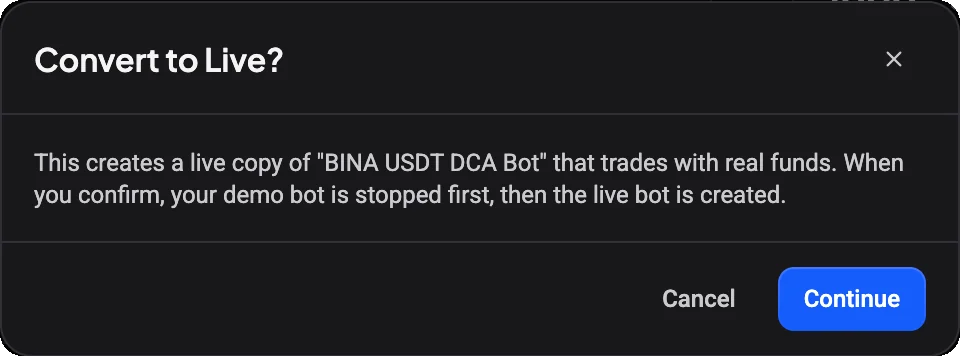
Convert to Live. When you're ready, create a live copy of the demo bot on the same exchange. The demo bot is stopped first.
Paper Trading is simulated. Live fills and results can differ.
Monitor Every DCA Position
Each DCA Bot has its own page with its stats, open positions, errors and settings, on desktop and on your phone.
- Invested
- Positions
- Realized PnL
- Unrealized PnL
- Total PnL

Positions lists open and closed positions with safety-order and take-profit progress, stop loss and errors. Error log shows anything the bot couldn't do, Analytics shows performance over time, and Settings lets you adjust parameters.
Review How Your DCA Bot Is Performing
-
Win rate and PnL
Win rate with positions won and lost, plus realized, unrealized and total PnL.
-
Performance charts
Cumulative PnL, daily PnL and closed positions over the report period.
-
Breakdowns
See results broken down by session, DCA usage, volume and market.
Analytics describe past results. They are not a forecast of future performance.
DCA Bot or HODL Bot?
Both bots can buy in stages, but they are built for different jobs.
DCA Bot
- Best for
- Active trading strategies that build positions with an initial entry and safety-order ladder
- Starts
- Immediately, from indicator conditions or from a configured price move
- Position behavior
- Manages entries and exits according to the strategy
HODL Bot
- Best for
- Scheduled long-term accumulation
- Starts
- According to a recurring schedule
- Position behavior
- Makes scheduled purchases and does not sell
DCA Bot or Signal Bot?
Both manage positions with entries, take profit and stop loss. What starts the trade is different.
DCA Bot
- Trigger
- Immediate, indicator conditions or price move
- Core purpose
- Build and manage positions using a configured DCA / safety-order strategy
Signal Bot
- Trigger
- Trading signals from supported signal providers
- Core purpose
- Apply configured trading rules to provider-generated opportunities
DCA Trading Inside Your Altrady Workspace
DCA Bot runs in the same Altrady workspace you use to monitor positions, manage trades and review performance.
- Trigger
- Enter
- Build
- Manage
- Review
One Workspace. Every Trade.
Run DCA Bots Across Your Connected Exchanges
Use DCA Bot with supported markets on your connected exchange accounts while your funds remain on your exchanges.
Altrady connects to supported third-party exchanges through API keys and does not require withdrawal permissions. DCA Bot features depend on the exchange and market.
-
19+ Exchanges
-
Spot & Futures
-
Funds Remain on Your Exchanges
-
No Withdrawal Permissions
-
 Binance
-
 Bybit
Bybit
-
 OKX
OKX
-
 Coinbase
-
 Kraken
-
 KuCoin
-
 MEXC
MEXC
-
 Hyperliquid
Explore More Ways to Automate
Frequently Asked Questions
-
Altrady DCA Bot automates active position entries using an initial entry and configurable safety-order ladder, with rules for when the bot starts and how the position is managed.
-
You choose a start mode when you create the bot. Immediate opens a position on your selected markets without waiting for a trigger, Indicator waits for your indicator conditions to become true at candle close, and Price Move waits for price to move by the percentage you set.
-
Safety orders are additional configured entries placed after the initial entry. They build the position according to the bot's DCA settings and change its average entry price as orders fill.
-
Yes. Indicator mode can open a position when your configured indicator conditions become true at candle close.
-
Yes. Price Move mode can trigger an entry after the market moves by the configured percentage according to the bot's settings.
-
Yes. DCA Bot supports configured take-profit and stop-loss rules for managing the position after entry.
-
Supported Indicator and Price Move DCA configurations can be tested against historical candles before the bot is created or run. Immediate DCA Bots are not backtested. Backtest results are historical simulations and do not predict future performance.
-
Yes. You can run a DCA Bot using simulated funds in Altrady Paper Trading before creating a live version.
-
Yes, DCA Bot can trade supported spot and futures markets. Futures can include long and short strategies, depending on the connected exchange and market.
-
DCA Bot is designed for active trading strategies that build and manage positions using an initial entry and safety-order ladder. HODL Bot makes recurring purchases on a schedule and is designed for long-term accumulation without automated selling.
Build Your DCA Strategy and Put It to Work
Choose when the bot should enter, configure how the position is built, and define how the trade should be managed.